
Making a QR Code for your sensor
Rather than look up the link to your sensor every time, why not create a QR code and stick it on the front of the sensor.
What is a QR Code
A QR code is a shape that contains information that can be ready by a camera on a phone, tablet or laptop with a camera. The QR code can contain text that can be read, but it can also contain a link to a website. One problem that we will see with this project is how much information we can put into a QR code. The longer the web address is, the more detailed the QR code is and it can be difficult to read on some tablets and phones, especially when it is small.
There is a solution to this. We can use a URL shortening service first, then turn it into QR code.
Long website address > URL Shortening service > QR Code Generator
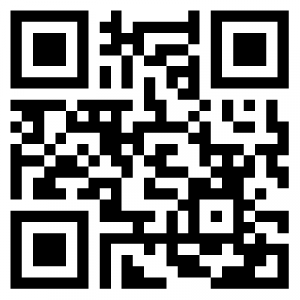
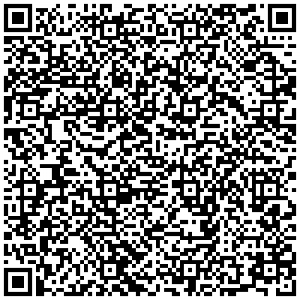
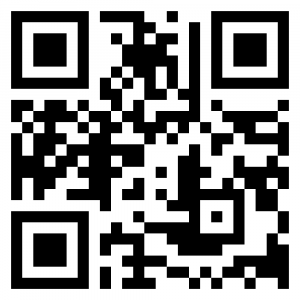
Creating a QR code for our Sensor
Step 1 – Find out the web address of the sensor graph
On your computer, go to this link which contains all the sensors from the IOT in Schools project, then get your sensor graph on the screen.
At the top of the screen you will see the web address that you need to copy. Make sure you copy all of the address – it may be quite long. (It works for me when I click three times on the web address (sometimes called a URL) then choose copy from the edit menu – Your computer may be slightly different)
Step 2 – Create a shortened URL (optional step to get simpler QR code)
Got to a URL shortener online such as https://tinyurl.com/app/
Enter the long URL and then copy the shortened version.
Step 3 – Create a QR code
Then go to a QR code creator online. These are four examples of QR code generators.
- https://www.the-qrcode-generator.com/
- https://goqr.me/
- https://www.qrcode-monkey.com/
- https://www.qrstuff.com/
Paste the website address into the Text/URL box and you will see the QR code appear. Download the QR code to your computer OR print out the page that has the QR code on it.
Step 4 – Print out the code
Print out the downloaded file on white paper. If the QR code is quite detailed and contains a long website address, then print it a little larger.
Step 5 – Make your QR Code available to school visitors
You could….
- Print out the QR code and stick it to the front of the sensor.
- Create a poster about your project and stick the QR code on the poster
- Create a larger poster for a public display area in the school and put stick the QR codes from each sensor on a plan of the school together with details about your project.